GPU Support for Raven Intelligence
Starting in version 1.1, Raven Intelligence can run model Inference with GPU support for PyTorch and ONNX models. We currently can’t run Tensorflow models with GPU support. Here are steps to get the required dependencies in place for Windows.
Requirements
- A GPU that supports NVIDIA CUDA 12.4 or newer.
- Up-to-date drivers for your GPU.
1. Check Compatibility
Fist, verify your GPU can support the required CUDA versions. 12.8 is recommended. 12.4 may work, but we have done limited testing with it.
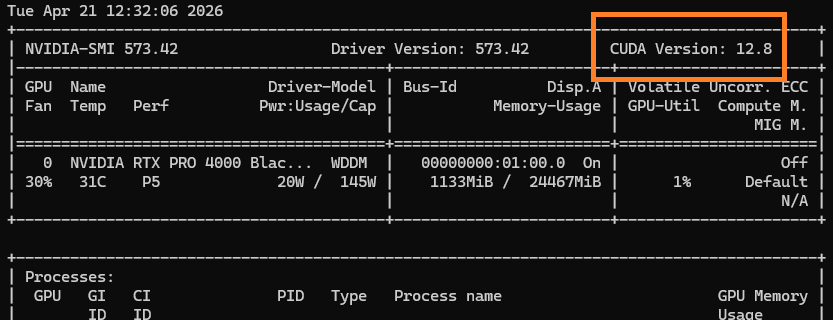
In a terminal, run the command nvidia-smi. This utility should be available if you have NVidia drivers installer. The supported CUDA version is in the top right corner. This needs to be 12.4 or greater. If it is not, Raven Intelligence will not be able to support it. Inference will still run fine using your CPU though.
2. Install NVIDIA CUDA
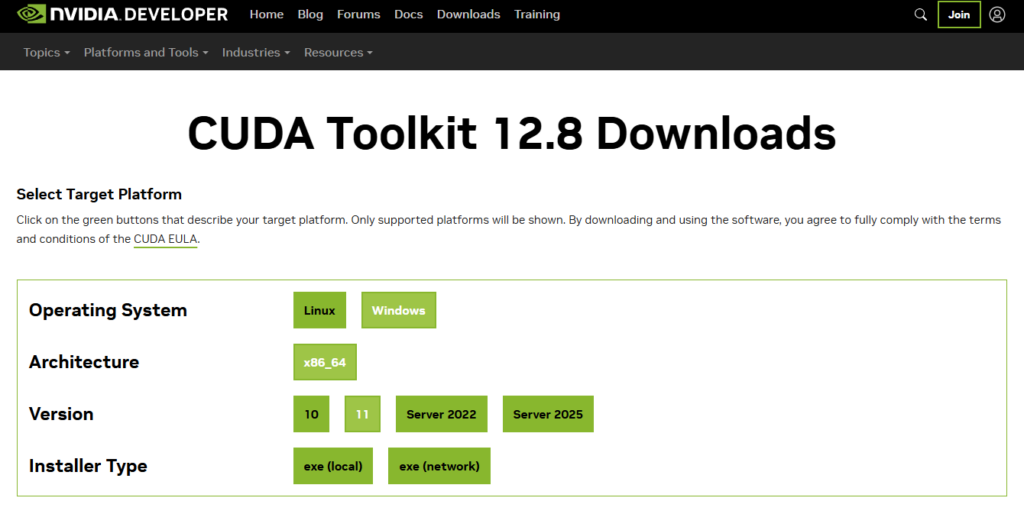
If your GPU supports 12.8 or newer, install NVIDIA CUDA 12.8.
If it supports 12.6 or 12.4, install NVIDIA CUDA 12.4.
3. Install NVIDIA CuDNN
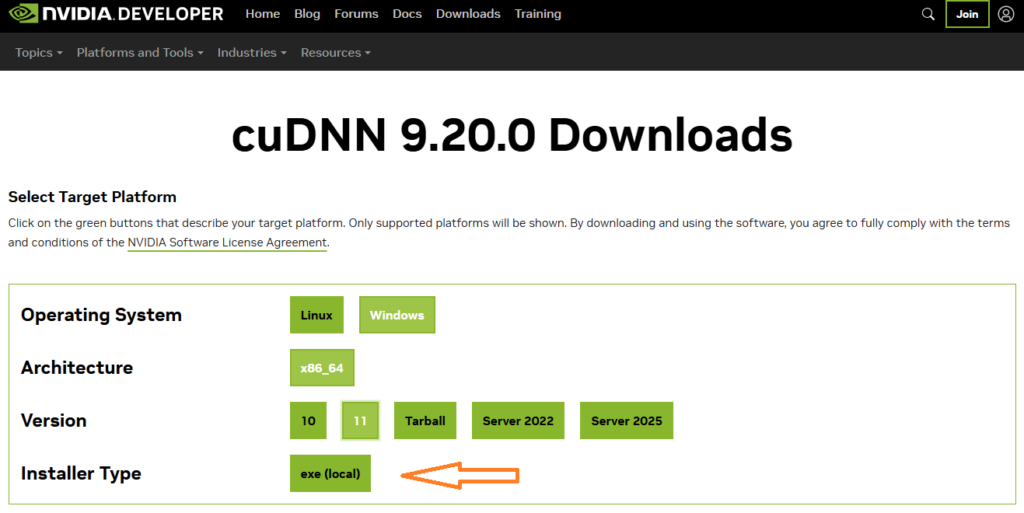
Download and install NVIDIA CUDA Deep Neural Network library cuDNN version 9.20.0.
Make sure you are installing the ‘exe’ version, not ‘tarball’.

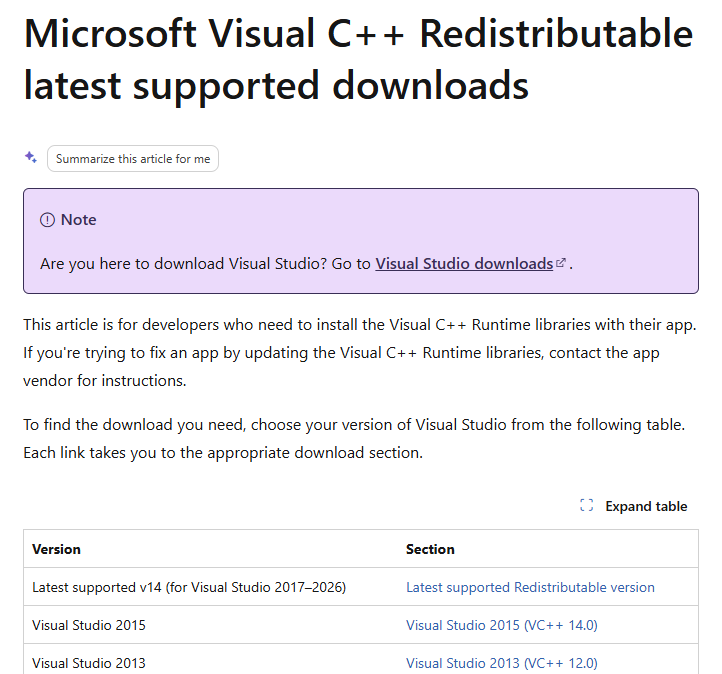
4. Install Microsoft Visual C++ Redistributable
Download and install the latest version.
5. RESTART your PC
!! Reboot your computer !!
We know, it’s annoying, but do it.
6. Make sure CUDA has access to ZLib
The CUDA library needs, but does not include, ZLib.
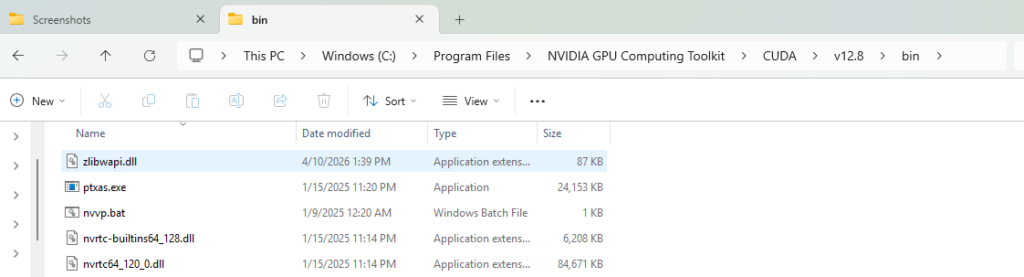
Download ZLib DLL and copy it to your CUDA bin directory, C:\Program Files\NVIDIA GPU Computing Toolkit\CUDA\v12.8\bin or C:\Program Files\NVIDIA GPU Computing Toolkit\CUDA\v12.4\bin
There are several places to find the DLL, we have placed a copy on our update server for convenience. If you get it from another source, make sure it is the x64 DLL.
7. Add DJL PyTorch resources to Path
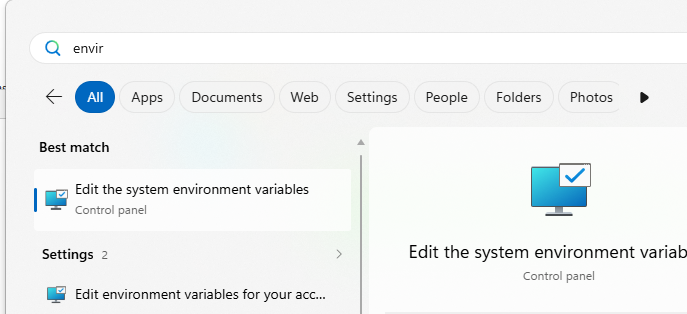
Open the system Environment Variables.
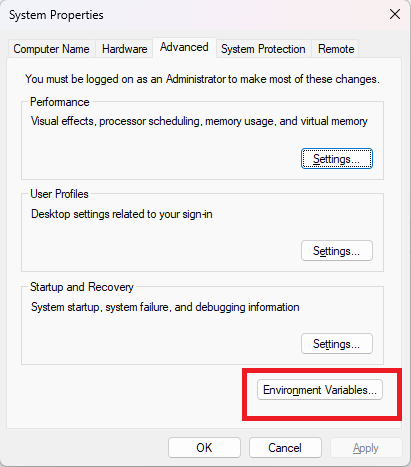
Edit the “Path” variable. Click “New” and add an entry:
%USERPROFILE%\.djl.ai\pytorch\2.7.1-cu128-win-x86_x64\
The directory may not exist until Raven Intelligence tries to run a PyTorch model. The first time you run a PyTorch model, Raven Intelligence will create this folder and download the PyTorch resources.
Run Raven Intelligence
Raven intelligence will automatically download required support libraries so that it can interface with the NVIDIA CUDA tools. The first time you run a PyTorch model, this download will happen in the background. It may take several minutes depending on your internet speed.
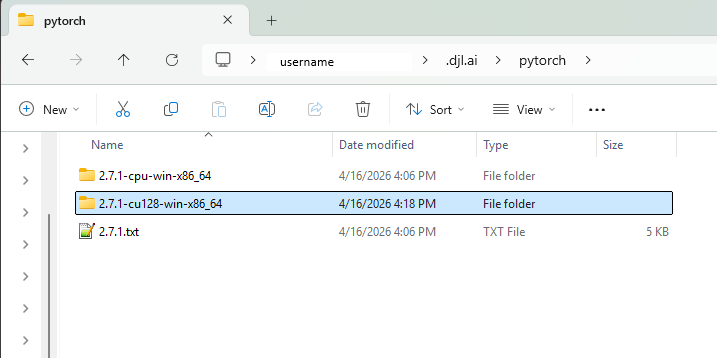
You can verify that the correct libraries were downloaded by finding a hidden folder in your %USERPROFILE% directory, C:\Users\<username>\.djl.ai\pytorch
You should have a folder 2.7.1-cu128-win-x86_64. The cu128 indicates CUDA 12.8.
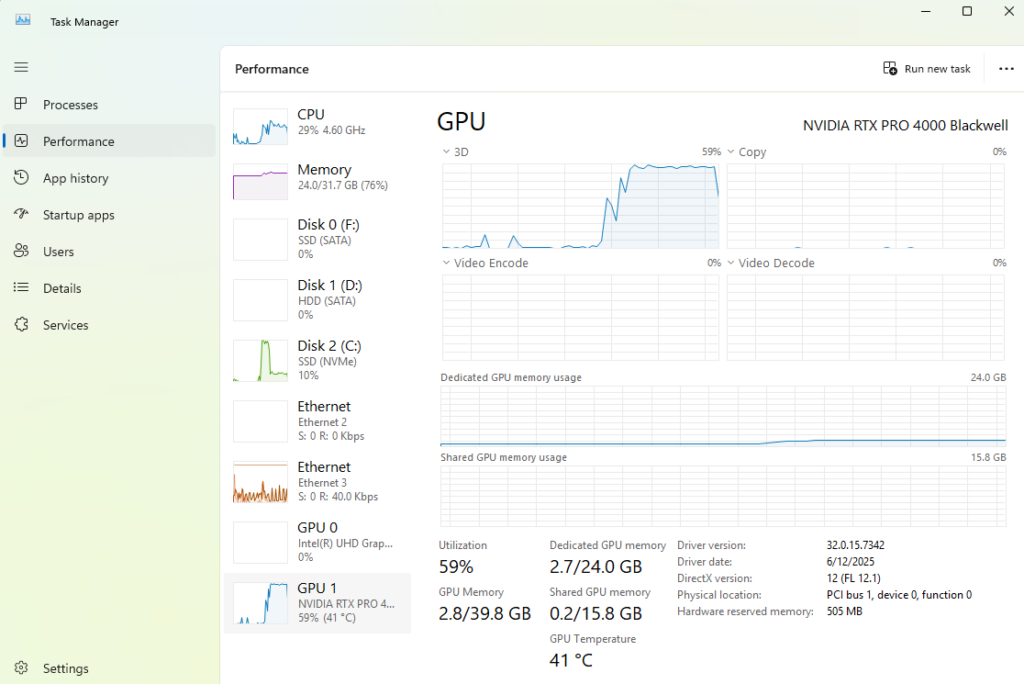
Not all models are able to run on GPU, but if the model you are working with can, you should see it reflected in the Windows Task Manager while running.